How to Add Lyrics to Video Automatically
Manually typing lyrics into a video editor is the kind of work that makes people quit halfway through. Every line needs the right in-point and out-point, every word needs to match the singer's phrasing, and one missed timestamp ripples through everything that comes after. For a three-minute song that's an hour of work, minimum, and the result still looks slightly off the beat.
The good news: you don't have to do it that way anymore. AI transcription has gotten accurate enough that the right tool can pull every word and every timestamp out of a song automatically. The bad news: most of the tools promising this are watermarked, web-based, or cloud-only. You upload your song, you get back a result you can't fully control, and you pay monthly to keep using it.
This post walks through every reasonable way to add lyrics to a video automatically in 2026, what each approach is actually good at, and where the tradeoffs land.
The four ways to add lyrics to a video
Before you pick a workflow, it's worth knowing what you're choosing between.
1. Type them in by hand
The traditional method. Open Premiere, DaVinci Resolve, CapCut, or whatever you use, drop in the song, and start adding text overlays one by one. Set the in-point and out-point manually. Pray the singer doesn't speed up.
When this works: short clips under 30 seconds, or songs with very simple, repetitive lyrics.
When it doesn't: anything longer. The math gets brutal fast.
2. Online lyric video makers
A whole category of free and freemium browser tools (Kapwing, Veed, Animoto, and dozens more) lets you paste lyrics in and handle the timing in some form. Some do basic auto-detection. Most just give you a clean lyric-text overlay system you still have to time yourself.
When this works: one-off projects where you don't mind a watermark, or songs already public so uploading them isn't a concern.
When it doesn't: anything where you don't want the audio leaving your machine, anything that needs to look broadcast-quality, or anything you want to keep working on later. These tools tend to lock your project behind a paywall once you've put real time into it.
3. AI transcription that runs on your own machine
This is the category that actually solves the problem. A speech-to-text AI listens to the song, identifies every word, and writes out timestamps. Not just per line. Per word. You drop it onto your timeline and the syncing is already done.
The catch: the tools that do this best are bundled into specific editors. The good ones run locally on your computer instead of uploading the song to a cloud service.
This is what MadSync does. The full workflow is below.
4. Hire someone
Fiverr or Upwork. You'll get a person, you'll wait two to five days, you'll pay $30 to $150 depending on song length and quality. Fine for one-time projects. Doesn't scale if you're posting weekly.
How to add lyrics to a video automatically with MadSync
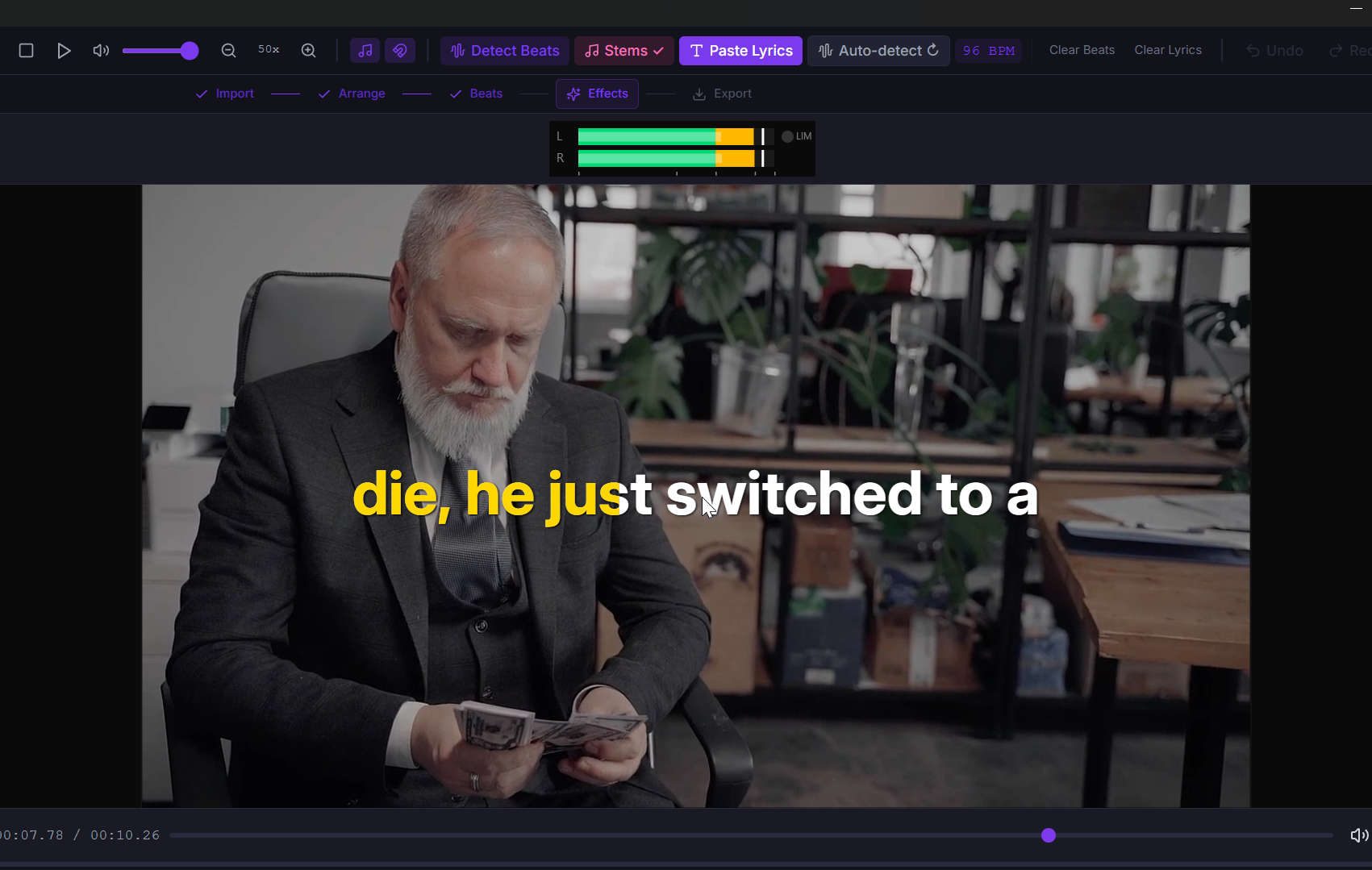
is a desktop video editor for Windows with automatic lyric transcription built in. The transcription runs locally on your PC, so the song never leaves your machine. Here's the workflow end to end.
Step 1: Import the song
Drag your audio file onto the timeline. MP3, WAV, M4A all work. MadSync handles the file directly without converting it first.
Step 2: Run auto-lyrics
There's a button labeled "Auto Lyrics" in the toolbar. Click it. MadSync's local AI listens to the song and transcribes the lyrics with word-level timestamps. For a three-minute song this typically takes 30 to 90 seconds depending on your CPU.
What you get back: every word in the song, lined up with the exact moment the singer hits it. Not the line. The word.
Step 3: Pick a karaoke style
Two display modes are included:
Full Sentence Karaoke. Each line of the song appears together, with the current word highlighting as the singer reaches it. The classic karaoke look. Good for music videos, lyric explainers, and TikTok content where viewers read along.
One Word at a Time. Each word appears solo, exactly when it's sung. The look you've seen on viral TikTok and Reels lyric videos in the last two years. High retention, more dramatic, forces viewers to pay attention to each word.
You can switch between the two without losing your edits.
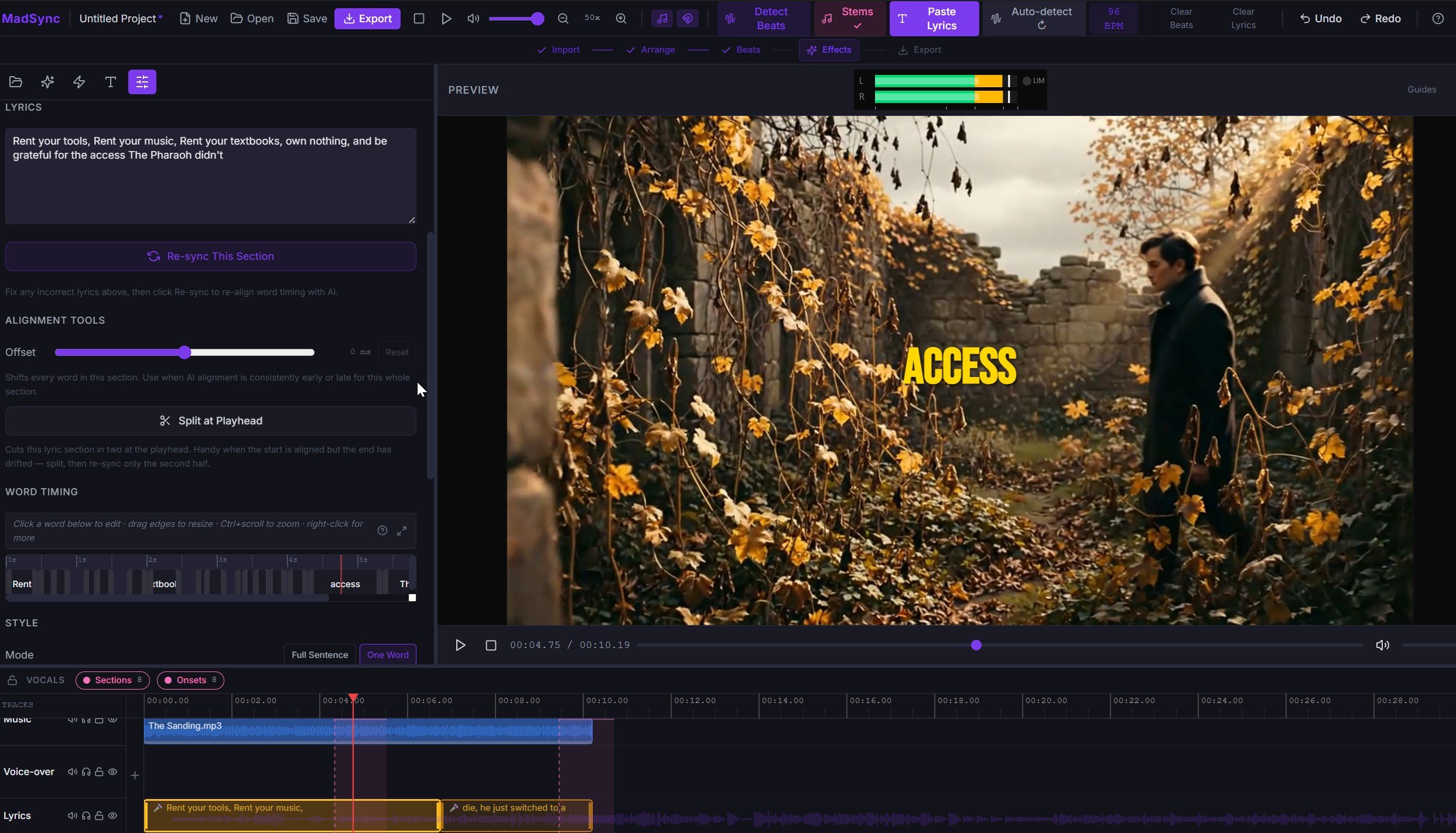
Step 4: Fix anything the AI mishears
This part matters and most blog posts about auto-lyrics tools skip it. AI transcription is good, not perfect. Songs with heavy vocal effects, thick accents, or fast rapping will sometimes produce a word that's wrong.
In MadSync, you click the wrong word, type the correct word, and the AI re-runs only that section. You don't redo the whole song. You don't manually shift every timestamp downstream. The fix takes about ten seconds per word.
This was the part of the build that mattered most. Auto-lyrics without an easy correction workflow is just an automated way to generate a lot of small problems.
Step 5: Style the text
Choose font, size, color, position, and outline. 14 fonts ship with the install. You can swap colors per-section if you want the chorus to look different from the verses.
Step 6: Export
MadSync renders the lyrics directly into the final video at export time. They're baked into the picture, so the result plays anywhere (TikTok, Reels, YouTube, your own site) without needing a separate caption track.
What about doing it in CapCut, Premiere Pro, or DaVinci Resolve?
People ask this constantly so it's worth answering directly.
CapCut has automatic captions on mobile, and they work reasonably well for spoken-word video. Singing is a different problem and CapCut's auto-captions handle it inconsistently. The desktop version's caption feature also requires uploading to CapCut's servers, which most music creators won't do if the track isn't released yet. No karaoke-style word-by-word display in any version.
Premiere Pro has speech-to-text. It's accurate for dialogue, marginal for sung lyrics, and there's no built-in karaoke styling. You'd build that effect with keyframed text layers manually. Subscription required.
DaVinci Resolve Studio has subtitle generation, but it's tuned for dialogue, not lyrics. The free version doesn't include the AI features. The paid version is $295 one-time, then you still build the karaoke effect manually on top.
None of these were designed for music videos. MadSync was. That's the difference.
Frequently asked questions
Can I add lyrics to a video automatically without internet?
Yes. Once MadSync is installed and activated, the auto-lyrics feature runs entirely on your PC. The song doesn't get uploaded anywhere. You can be on a plane or in a basement without signal and the lyrics still transcribe.
What if my song has multiple singers or harmonies?
The transcription picks up the lead vocal. If two singers share a line, you'll get whichever the AI considers the dominant track. For complex harmonies you can fix mistakes per-word with the correction workflow.
How accurate is automatic lyric transcription?
Roughly 90 to 95 percent on clean studio vocals in English. Lower on heavy accents, mumble rap, screamed vocals, or tracks with strong vocal effects. The correction step matters. Final accuracy is whatever you make it after fixing the misheard words.
Does this work with songs in other languages?
Yes. MadSync's transcription handles 99 plus languages out of the box. Quality is highest for English, Spanish, French, German, Japanese, and Mandarin. Smaller languages work but accuracy varies.
What if I just want captions, not lyrics?
The same feature handles spoken word. You can use it for podcast clips, interview b-roll, or talking-head content. Same workflow, same word-level timing.
Is MadSync a CapCut alternative for PC?
Yes. MadSync is a desktop editor for Windows, $49 one-time, with AI auto-lyrics, beat detection, and stem separation built in. Files stay on your machine. No subscription.
What to do next
If you make music videos, lyric videos, or any kind of song-based content regularly, having an automatic lyrics workflow saves real hours. If you're shipping one project a year you can probably get away with hand-typing.
For the people in the first group: try . $49 one-time, runs on Windows, the auto-lyrics feature is what most people use it for first.