How to Make a Music Video for a Suno Song on PC
I made a song in Suno and wanted to turn it into a real music video. Not the looping cover art Suno auto-generates. Not one of those mobile apps that pastes your audio under stock footage. An actual music video with cuts on the beat, lyrics timed to the vocal, and a vertical version for TikTok.
This is how I do it on Windows.
Here's one I made. Song in Suno, visuals and edit in MadSync.
What you need
A Suno song you generated on a paid plan. Suno's paid tiers grant commercial use rights for anything you create while subscribed. Free plan songs are non-commercial only, so they won't work for this.
A Windows PC.
A music video editor with beat detection and lyric timing. I use MadSync because I built it for this.
And visuals. That's the part most Suno users get stuck on.
Where to get visuals
You have the song. You don't have footage. Four options, pick whatever fits:
Free stock footage. Pexels and Pixabay are genuinely free for commercial use with no attribution required. Mixkit is another good one. Good for real-world shots like cities, nature, people, moving water.
AI video generation. Runway, Kling, Luma Dream Machine, Google's Veo and Flow through Gemini, or ComfyUI locally if you have the GPU for it. You own what you generate. Good for stylized, surreal, or specific visuals that stock can't give you.
Public domain footage. Archive.org has decades of old films, documentaries, and industrial footage, all free to use. Good for vintage or cinematic looks.
Your own footage. Anything you shot on your phone or camera. The cat video I made is my own footage.
Most music videos end up mixing two or three of these. Stock for B-roll, AI for the dream sequences, your own footage for the shots only you could get.
Step 1: Export your Suno song
Open the song in Suno and click the three dots. Download WAV for best quality, MP3 if you don't care. Save it where you can find it.
Step 2: Import the song into your editor
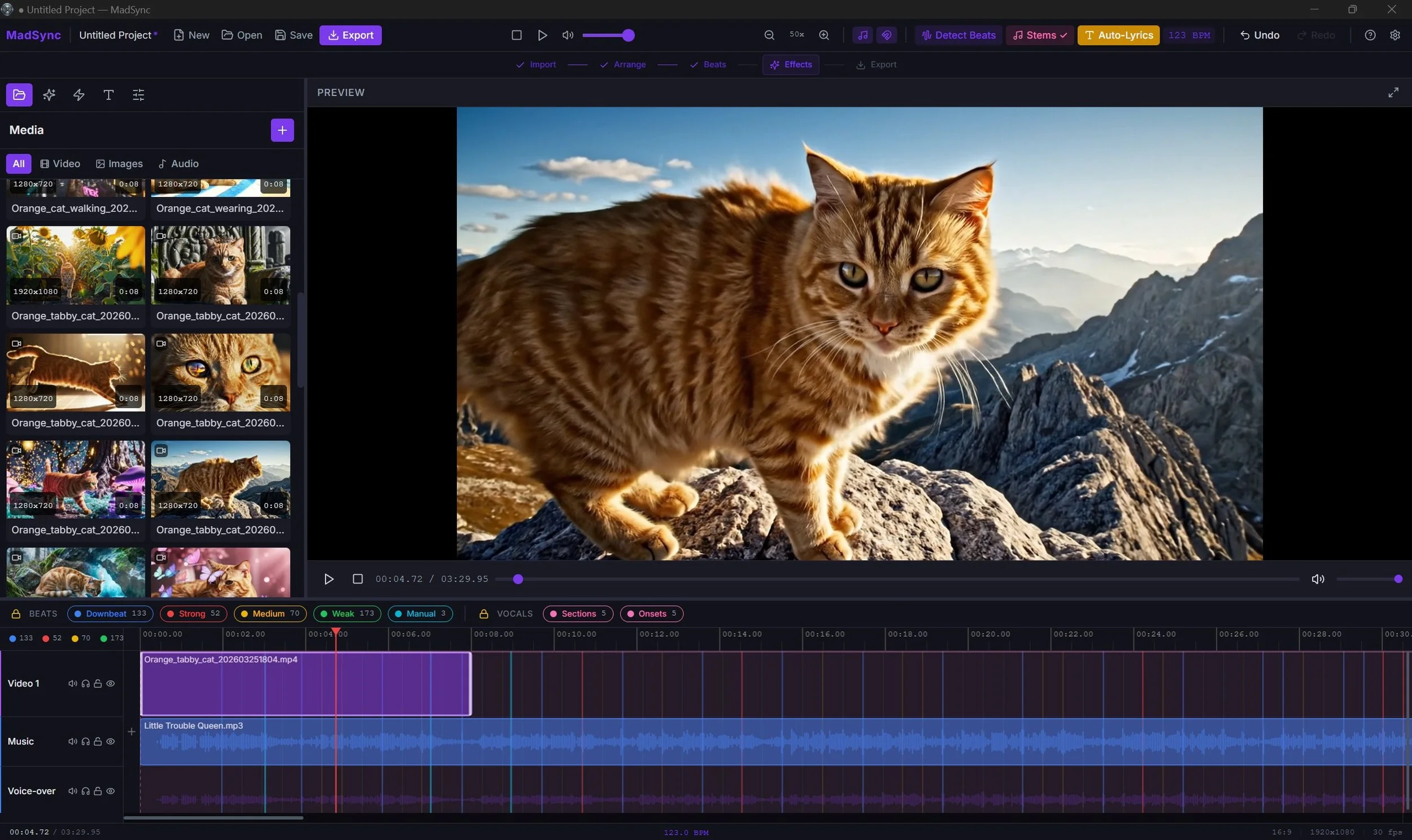
Drag the audio file onto the music track. If your editor separates audio and video tracks, the song goes on the audio track.
Step 3: Detect the beats
Click Detect Beats. The song gets analyzed and colored markers appear on the timeline for downbeats, strong beats, medium, weak. You can filter which ones show.
Once the beats are marked, your clips snap to them when you cut. That's the whole point. Manual beat-matching by ear works, but it's slow and your timing drifts a few frames every cut.
Step 4: Separate the stems
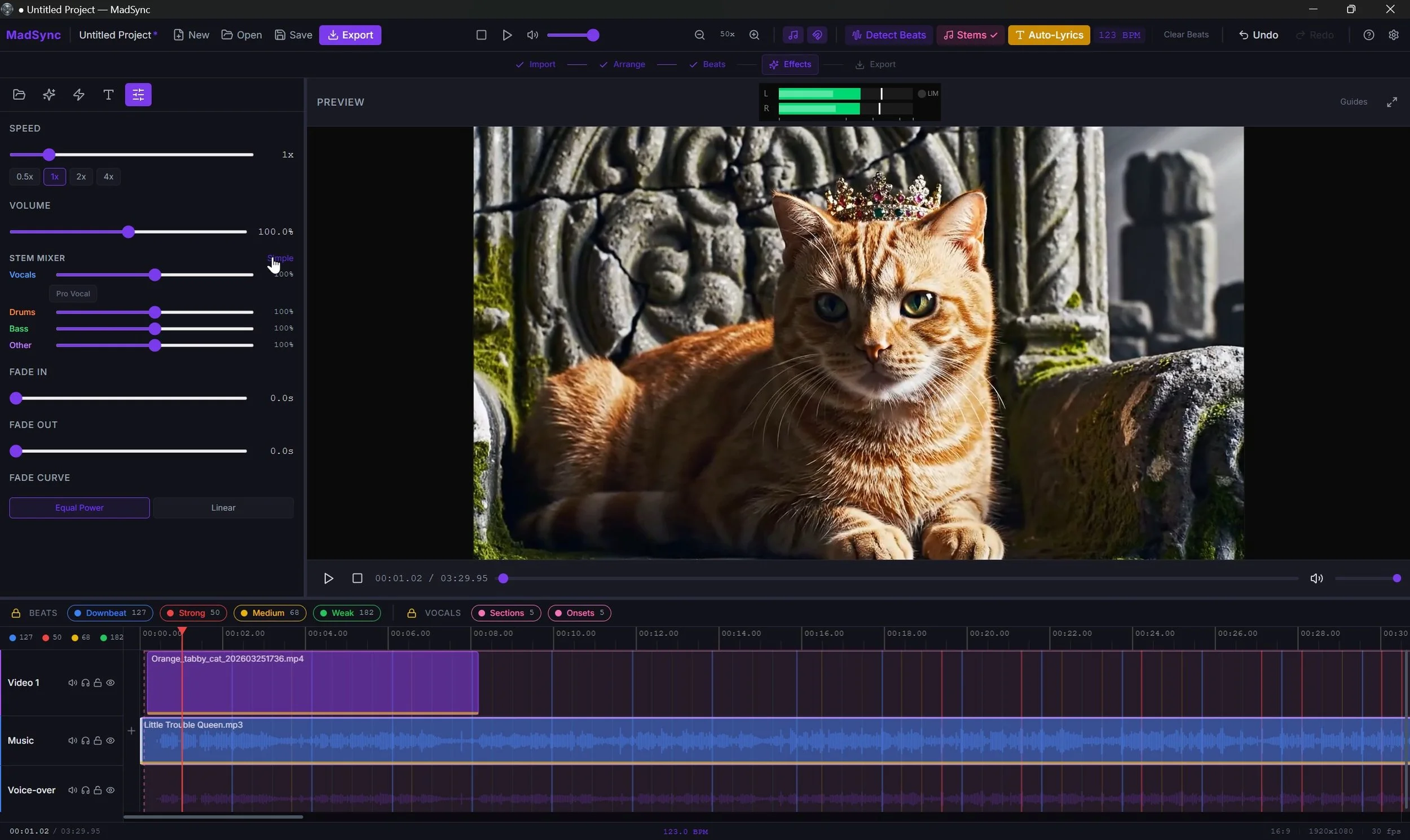
Stem separation splits the song into four tracks: vocals, drums, bass, and other.
You don't need this for every edit. When you do need it, you really need it. Drop the vocals to zero for an instrumental teaser. Boost the drums for a hype cut. Kill the bass when it's muddying up a vocal moment.
MadSync runs this locally using Demucs. First pass takes 30 to 60 seconds per song, then it's cached.
Step 5: Generate word-by-word lyrics
Suno gives you the lyrics as text. What you want for a music video is lyrics with timing. Each word appearing as it's sung.
Auto-lyrics tools transcribe the vocal and place each word on the timeline at the right moment. MadSync runs this on the isolated vocal stem, which is more accurate than transcribing the full mix.
Two display modes: full sentence with the current word highlighted karaoke-style, or one word at a time TikTok-style. Pick fonts, colors, position. Misheard words can be edited and re-synced in place.
Step 6: Cut your video to the beats
This is where your taste takes over.
Drop your clips onto the video track. Use the beat markers as cut points. Short clips on verses, longer holds on choruses, hard cuts on downbeats.
Mix sources freely. A Pexels shot cuts against a Runway-generated clip with no problem if your color grading is consistent. Pro editors have been mixing sources forever. There's nothing wrong with it.
Step 7: Add effects and transitions
Beat-synced effects are what make a music video feel like a music video. Flashes on strong beats, color washes on drops, blur on transitions.
Placing these manually works but takes hours. MadSync has presets that generate them on the beat markers automatically: AMV Classic, Hype Edit, Cinematic, Lo-Fi, EDM Drop, a few others. Pick one, scrub through, adjust what doesn't fit. Every generated effect is a regular clip you can edit or delete.\
Step 8: Export for where you're posting
YouTube: 1080p, 16:9, 30 or 60 fps.
TikTok, Reels, Shorts: 1080p, 9:16 vertical, 30 fps.
Instagram feed: 1080p, 1:1 square or 4:5 portrait.
GIF: 480p, 15 fps.
Export the same project in multiple aspect ratios. Same song, same cuts, different crops. One edit, three posts.
Why do this on a PC
Most Suno-to-video tools are web apps. You paste a link, they generate a music video. Fast, but you don't control the cuts, the timing, the lyrics, or the color. The output looks like every other video made with that tool.
A real editor puts the decisions back in your hands. You cut where you want. You pick the font. You control the pacing.
That's what MadSync is. Windows desktop, one-time purchase, runs on your own machine. Beat detection, stem separation, word-by-word lyrics, and exports for every major platform.
If you want the tool from this workflow: https://www.madfable.com/edit-video-to-music