
Record exactly
what matters.
MadCapture puts a floating frame on your Windows screen. Drag it and resize it, even while you're recording, and everything inside becomes a clean MP4. There's no watermark and nothing gets uploaded anywhere. Always subscription free.
One-time payment · Instant license key by email · Windows 10 & 11
✓ $14 once, no subscription ✓ No watermark, no time limits ✓ Works offline after activation ✓ Digitally signed Windows app
What you frame is what you get
MadCapture records only what's inside the frame, so the take that comes out is the video you wanted.
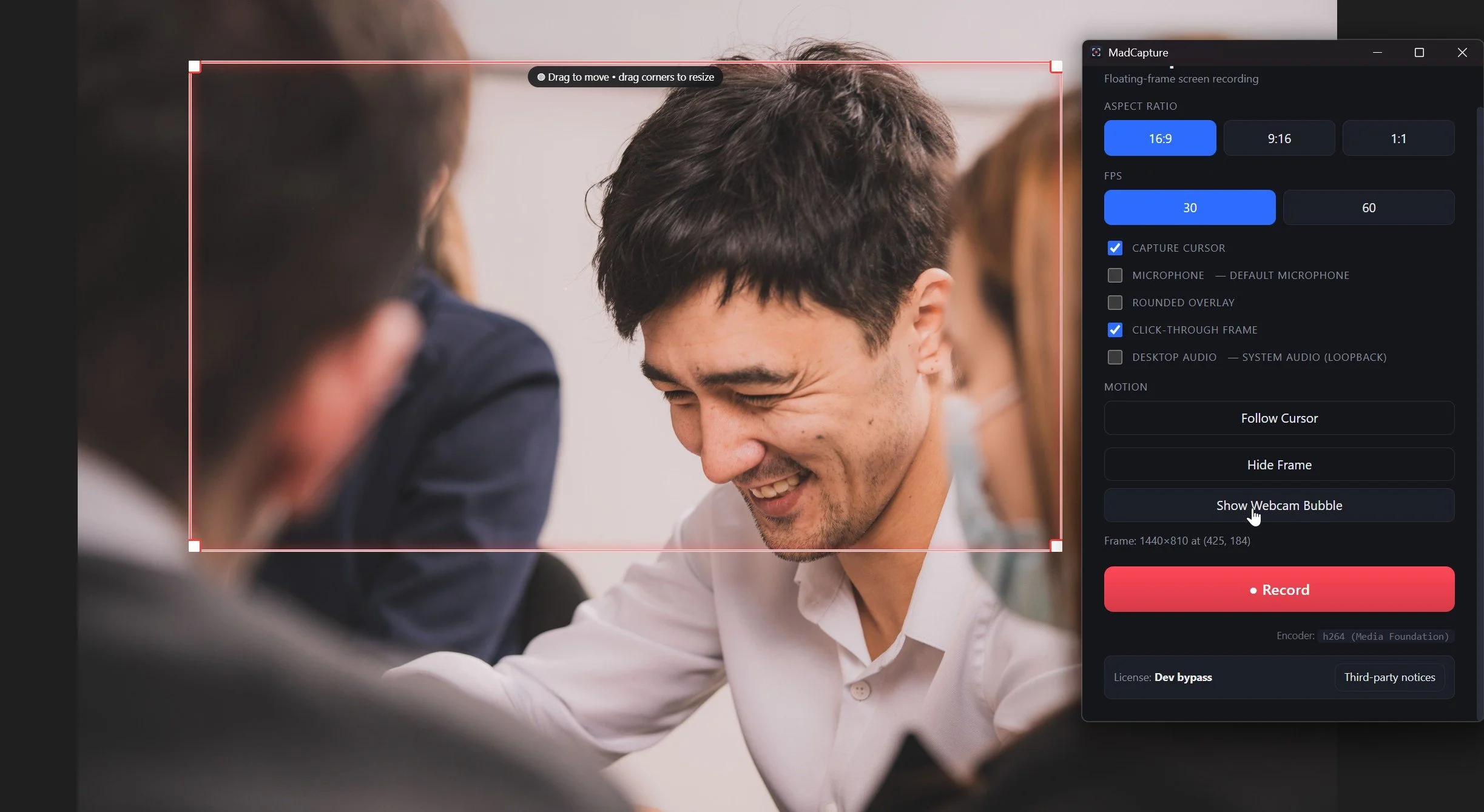
Floating Frame
Drag the frame anywhere and resize from any corner, even while you're recording. The output stays one fixed, crisp size.
Mic + desktop audio
Record your voice, your computer's sound, or both mixed together, kept in sync with the video automatically.
Follow Cursor
The frame glides smoothly after your mouse, keeping the action centered. Press Esc any time to release it.
Click-through frame
Make the frame ignore your mouse entirely, so you can work in the apps beneath it while it records.
Webcam bubble
Put your face in the corner of the recording. Drag it, pin it, resize it. Perfect for tutorials and reaction content.
Invisible in your footage
The red frame and the control panel never show up in your footage. All you get is the content you framed.
Smooth 60 FPS
Record at 30 or 60 frames per second into a crisp, hardware-accelerated H.264 MP4 that plays everywhere.
Featherweight
Practically zero CPU while idle and light while recording, so your machine's power goes to the thing you're recording.
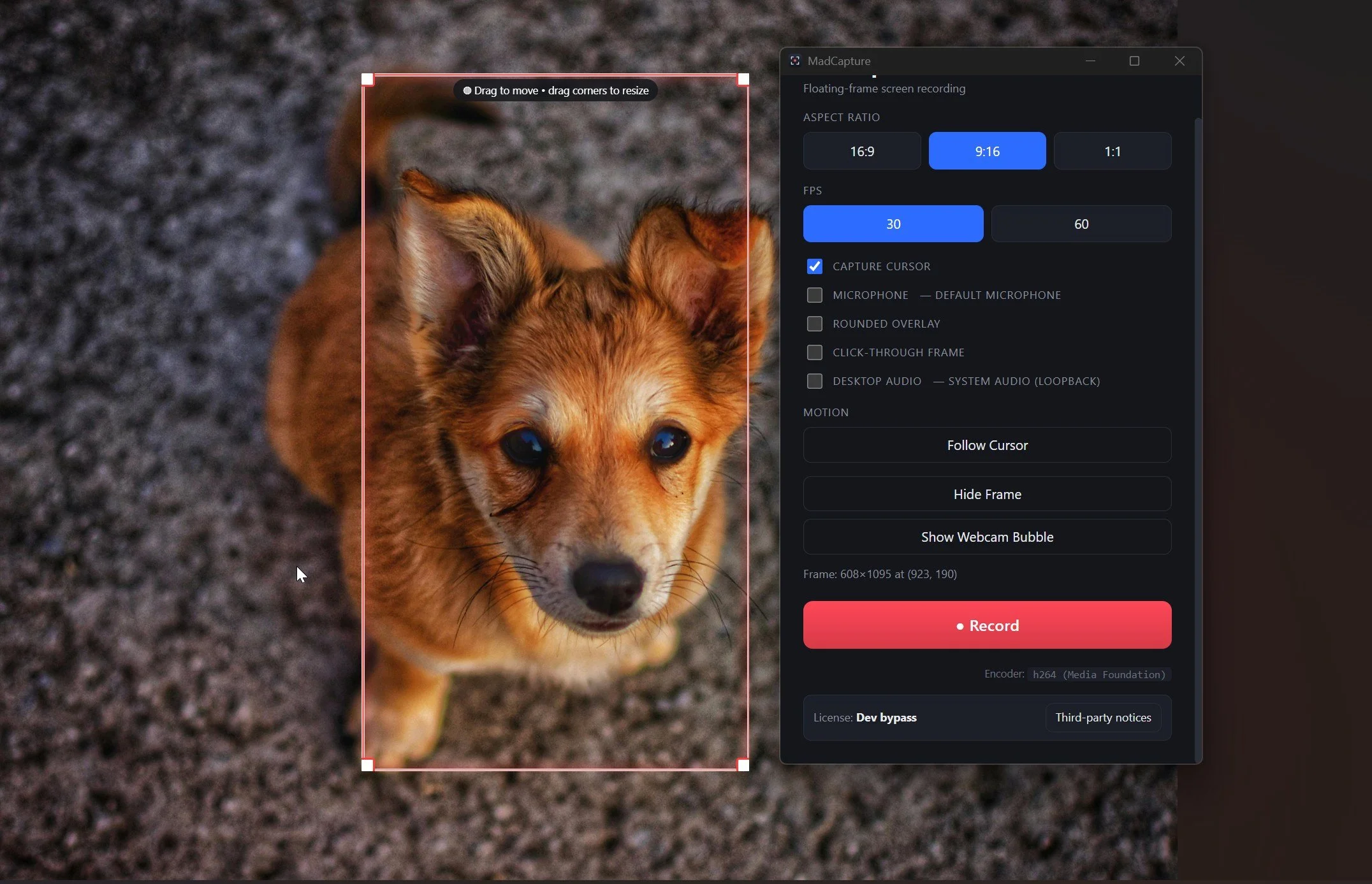
Vertical, without the crop.
Making Shorts, Reels, or TikToks from screen content usually means recording widescreen, then cropping in an editor and hoping the important part survives. MadCapture records 9:16 straight from your screen.
16:9, 9:16, and 1:1 presets, or resize freely
Frame the exact region your short needs, nothing else
Webcam bubble + mic for commentary on top
Upload the MP4 as-is, no editing pass required
Three steps and you're done.
Frame it
Drop the frame over what you want to capture. Pick 16:9, 9:16, or 1:1, or just drag the corners to taste.
Hit Record
Toggle mic, desktop audio, webcam bubble, or cursor-follow. Then press the big red button.
Share the MP4
Your recording lands in Videos > MadCapture as a standard MP4 that plays and uploads anywhere.
Your next recording, framed right.
Secure checkout by Lemon Squeezy · Windows 10 & 11 (64-bit)
Quick answers.
-
Windows 10 (version 1803 or newer) and Windows 11, 64-bit. Video is encoded by Windows' built-in H.264 encoder, so there's nothing extra to install. (On Windows "N" editions, enable the free Media Feature Pack in Settings.)
-
Yes. You pay $24 once and the app is yours. There’s no subscription, no account to create, and no recurring charge of any kind.
-
None. There's no watermark, no time limit, and nothing held back for an upsell. What you buy is the whole product.
-
Straight into your Videos > MadCapture folder as standard MP4 files. Recordings stay on your computer. MadCapture has no cloud, no uploads, and no analytics.
-
Yes. You need internet once to activate your license key. After that, MadCapture keeps working even with no connection at all.
-
Your license activates on up to 2 computers at the same time. Moving to a new machine? Deactivate on the old one with a click and activate on the new one.
-
The installer ships with everything MadCapture needs, including Microsoft's WebView2 runtime, so it installs cleanly on any PC, even one with no internet connection. The app itself is only about 10 MB.
-
Email support@madfable.com and a real person will get back to you.